Dead Pixel Test: How to Check Any Screen
A new monitor, laptop or phone should be checked for faulty pixels while you can still return it. The test takes five minutes and needs only a set of plain full-screen colours.
How a pixel works
Every pixel on a colour display is made of three smaller lights called sub-pixels: one red, one green, one blue. Mixing their brightness produces every colour you see. All three fully on gives white. All three off gives black. A fault can affect a whole pixel or just one of its sub-pixels, which is why you need to test more than one colour.
Dead, stuck and hot pixels
| Type | What you see | Best colour to find it | Fixable? |
|---|---|---|---|
| Dead pixel | A black dot that never lights | White | Rarely |
| Stuck pixel | A dot that stays red, green or blue | Black, and the other two colours | Sometimes |
| Hot pixel | A dot that stays white | Black | Sometimes |
| Dead sub-pixel | A dark dot on one colour only | Red, green or blue | Rarely |
The five-minute test
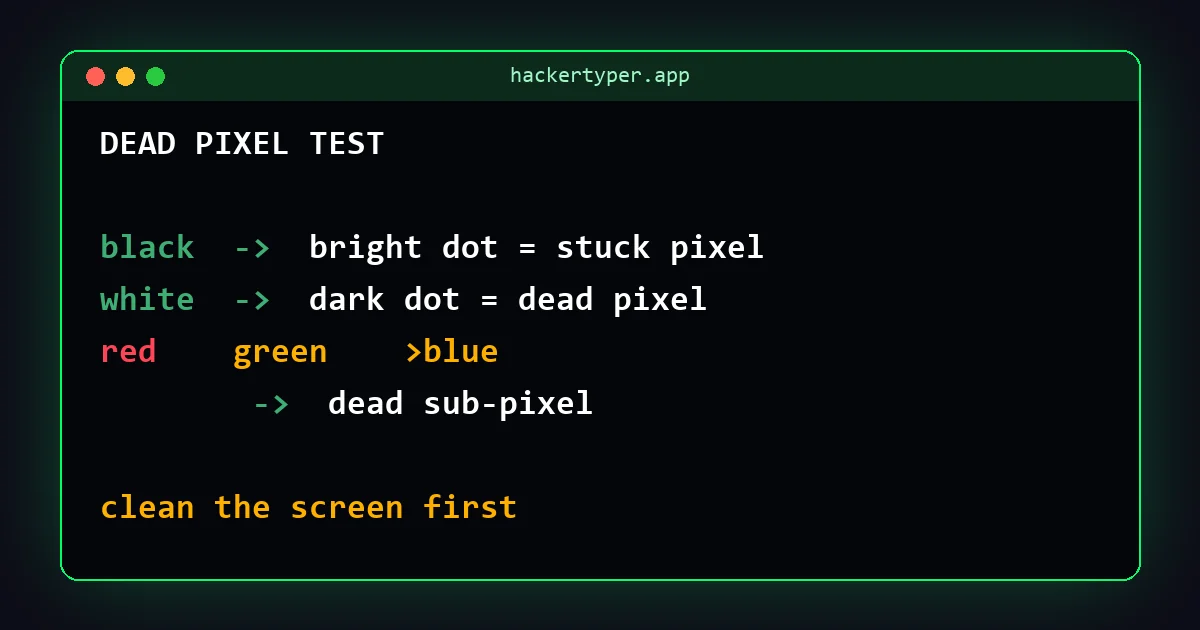
- Clean the screen. Wipe it with a dry microfibre cloth. Dust looks exactly like a dead pixel.
- Set the native resolution and normal brightness. Dim the room lights.
- Open the black screen and press Fullscreen. Scan the display slowly, edge to edge. Any bright dot is a stuck or hot pixel.
- Open the white screen. Any dark dot is a dead pixel. Coloured tints or shadows are uniformity problems rather than pixel faults.
- Repeat with red, green and blue. A dark dot on only one of these is a dead sub-pixel.
- Check any suspect dot. If it moves when you wipe it or looks different from an angle, it is dust or a mark on the glass.
On a phone or tablet, open the same pages in the browser and go full screen. A magnifying glass helps on high-resolution screens, where single pixels are tiny.
While you are there: other things to check
- Backlight bleed. On black in a dark room, look for light leaking from the edges or corners of an LCD.
- Uniformity. On white or grey, look for darker patches or a tint on one side.
- Image retention. On a used OLED, plain grey or a single colour may reveal faint ghosts of old images.
Can a stuck pixel be fixed?
Sometimes. A stuck pixel still receives power, so it can occasionally be brought back. A dead pixel usually cannot.
- Wait. Some stuck pixels clear on their own within hours or days of normal use.
- Colour cycling. Displaying rapidly changing colours over the area for ten to thirty minutes sometimes frees a stuck sub-pixel. Results vary, and flashing colours are unsuitable for anyone sensitive to them.
- Avoid pressing or rubbing the panel. It is often suggested online, but pressure can damage more pixels and may void the warranty.
When to return the screen
Manufacturers set their own rules on how many faulty pixels count as a defect, and those rules differ between brands and product lines. Some premium products are covered for a single bright pixel; others allow several before a replacement is offered. Check the pixel policy in your warranty.
The simplest route is the retailer's return window. If you find a fault in the first days, returning or exchanging the product under the shop's normal return policy is usually easier than a warranty claim. This is why testing on day one matters.
FAQ
How do I test for dead pixels?
Clean the screen, then view full-screen black, white, red, green and blue in turn and look for dots that do not match the background.
What is the difference between a dead pixel and a stuck pixel?
A dead pixel is permanently off and looks black. A stuck pixel is permanently on in one colour and looks red, green, blue or white.
Can dead pixels spread?
A single dead pixel does not spread to its neighbours. A growing group of faulty pixels usually points to physical damage or a failing panel, which should be checked under warranty.
Is one dead pixel covered by warranty?
It depends on the manufacturer's pixel policy. Many require more than one faulty pixel before replacing a screen, so check the terms for your model.