Dead Pixel Test
Check any monitor, laptop, TV or phone for dead and stuck pixels. Go full screen, then click or press the arrow keys to step through nine solid colours and look for dots that don't match.
- Free
- No download or sign-up
- Runs in your browser
In full screen: click, Space or → for the next colour, ← to go back, Esc to exit.
How to test for dead pixels
- Clean the screen with a dry microfibre cloth first. Dust looks exactly like a dead pixel.
- Press Fullscreen and dim the room lights.
- On black, look for bright dots: stuck or "hot" pixels.
- On white, look for dark dots: dead pixels.
- On red, green and blue, look for dark dots that appear on one colour only: a dead sub-pixel.
- Use cyan, magenta, yellow and grey as a final check, and to spot uneven brightness.
What did you find?
| You see | It is | What to do |
|---|---|---|
| A black dot on every colour | Dead pixel | Usually permanent. Check your warranty or return window |
| A red, green or blue dot that never changes | Stuck pixel | Often fixable. Try the stuck pixel fixer |
| A white dot on black | Hot pixel | Try the stuck pixel fixer |
| A dot that moves when you wipe the screen | Dust or a smudge | Clean the screen |
For the full method, including warranty advice, read the dead pixel test guide. Need a single colour instead? Use the white, black, red, green or blue screens.
Dead pixel test FAQ
How do I check for dead pixels?
Show full-screen black, white, red, green and blue in turn and look for any dot that does not match the background colour.
Does this dead pixel test work on phones and TVs?
Yes. Open it in the phone's browser and tap to change colour. For a TV, open it on a laptop connected to the TV or in the TV's own browser.
What is the difference between a dead and a stuck pixel?
A dead pixel is always off and looks black. A stuck pixel is always on in one colour and shows as a red, green, blue or white dot.
More tools
 Stuck Pixel FixerFlash colours over a stuck pixel to revive it.
 Refresh Rate TestSee your screen refresh rate in Hz.
 Double Click TestCheck if your mouse double clicks by itself.
 Spacebar CounterHow fast can you press space?
 Touch Screen TestMulti-touch, dead zones and ghost touch.
 Burn-In TestColours and greys that reveal OLED burn-in.
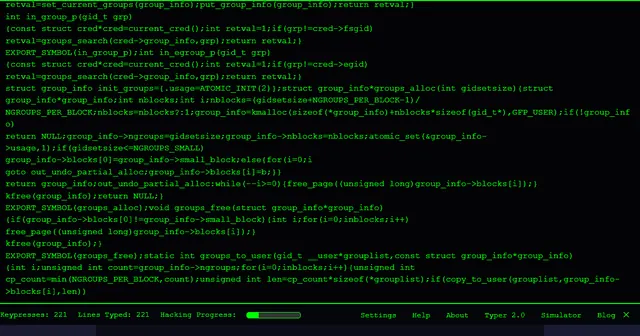 Hacker TyperThe classic: mash any key, get lines of kernel code.
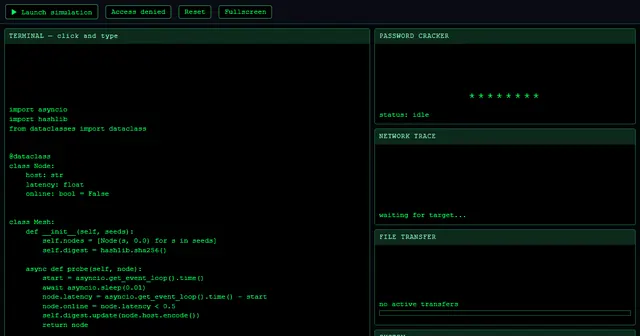 Hacker SimulatorA full fake hacking dashboard with one click.